



Moving into a new commercial space is a major project for any business. It requires coordinating contractors, setting up IT systems, and scheduling furniture deliveries. All of this must happen while ensuring your team returns to work smoothly. A single missed step can cause delays that directly impact your productivity and profits.
Many businesses find it more challenging to prepare the physical space than to handle the technology itself. Before you install server racks or desk screens, you must finish the foundational work. You need to lay the flooring, plan the cabling routes, and clear the work areas.
The need for efficient transitions is rising. According to CBRE, UK office space rentals reached 20.3 million square feet in the Q3 of 2025. As businesses rush to meet tight schedules, the margin for error in site preparation is shrinking.
At CCT Global, we help you upgrade your workspace with high-end office technology, networking solutions, and productivity tools. In this guide, we provide an easy-to-follow checklist to make sure your new office is set up smoothly and equipped with the technology you need.
Key Checklist to Consider for New Office Setup
Here are some key checklist items to consider for a seamless new office setup:
1. Audit the Space and Identify Waste Early
Visit the space at least four weeks before your move-in date. Make a list of everything that needs to go, including:
- Old desks
- Shelves
- Ceiling tiles
- Partitions
- Flooring
Schedule your waste removal during this time. A nationwide provider like ProSkips works promptly and ensures that your site stays clear of hazards. Waiting until the last minute can delay everyone working after you.
A Business Waste report shows that construction, demolition, and fit-out waste make up around 62% of all waste generated in the UK each year. Booking waste removal at the audit stage helps keep it manageable and prevents delays later.
2. Strip the Fit-Out Before IT Arrives
Clean walls and floors give your cabling team a fresh beginning. Dust from dismantled partitions or skirting boards can harm sensitive networking equipment if the area is not cleared first.
Your IT installation team needs a clean floor to work effectively. Electricians and network engineers require clear access to install:
- Structured cabling
- Floor boxes
- Power distribution units
Even minor debris or leftover waste can cause significant delays. To ensure a smooth installation, your team must address common physical barriers, including:
- Old carpet tiles
- Unused office partitions
- Ageing drop ceiling tiles
Before your new networking hardware and ergonomic furniture come in, the physical workspace must be cleared of all previous fit-out debris. Managing the removal of old partitions, carpets, and non-electronic furniture is much simpler with a dedicated waste partner.
While your contractors prepare the physical shell, you can ensure your files and data is streamlined before moving in. By engaging experts like Cleardata to digitise and automate your management systems now, you ensure your new office is operational and paperless from the very first day.
A clean and organised site is safer, and a safer site keeps your project on track.
3. Confirm Power and Data Points
Investigate your technology needs against your electrical plan before installation starts. Knowing where your workstations, server room, and collaboration areas will be helps your electrician correctly position power outlets and data ports.
For clearer guidance on matching power and data points to your office layout, explore this practical guide to planning office network cabling before you move.
On sale products
-
Acer Aspire Go 15 i3 Laptop
Original price was: £349.00.£299.00Current price is: £299.00. -
BENFEI DisplayPort to HDMI Cable
Original price was: £32.99.£28.04Current price is: £28.04. -
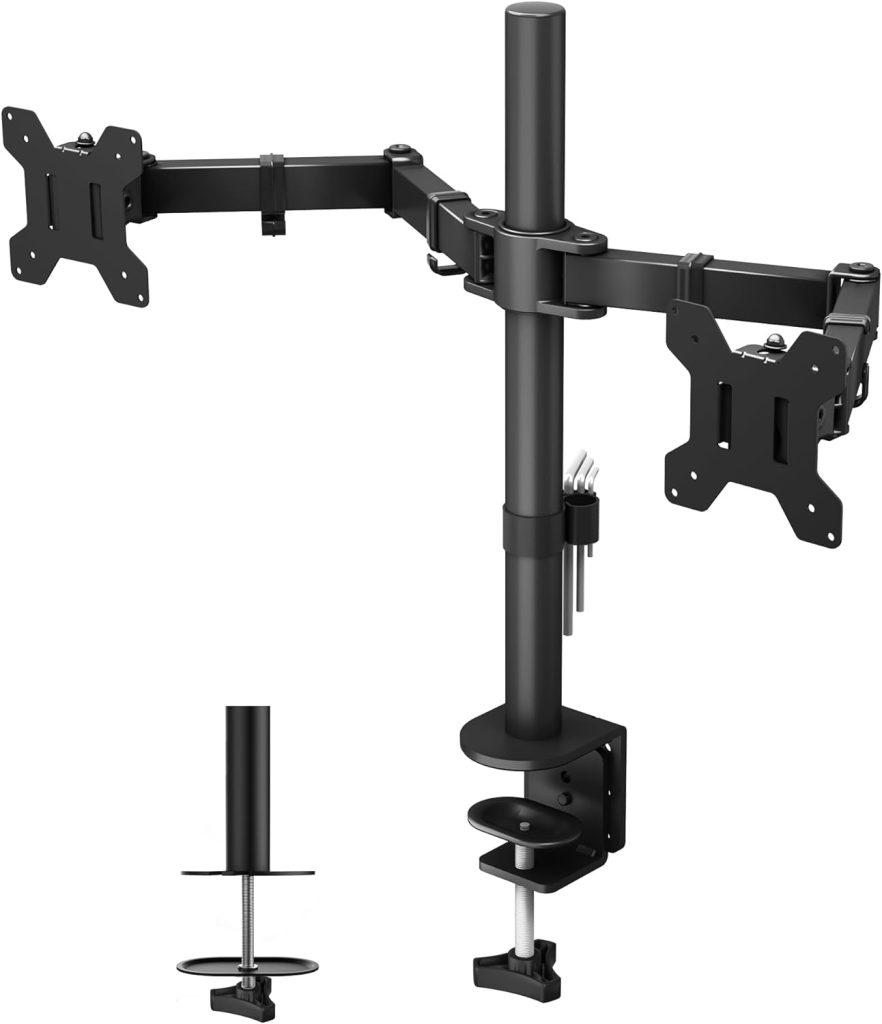
BONTEC Dual Monitor Stand Mount
Original price was: £35.99.£25.98Current price is: £25.98. -
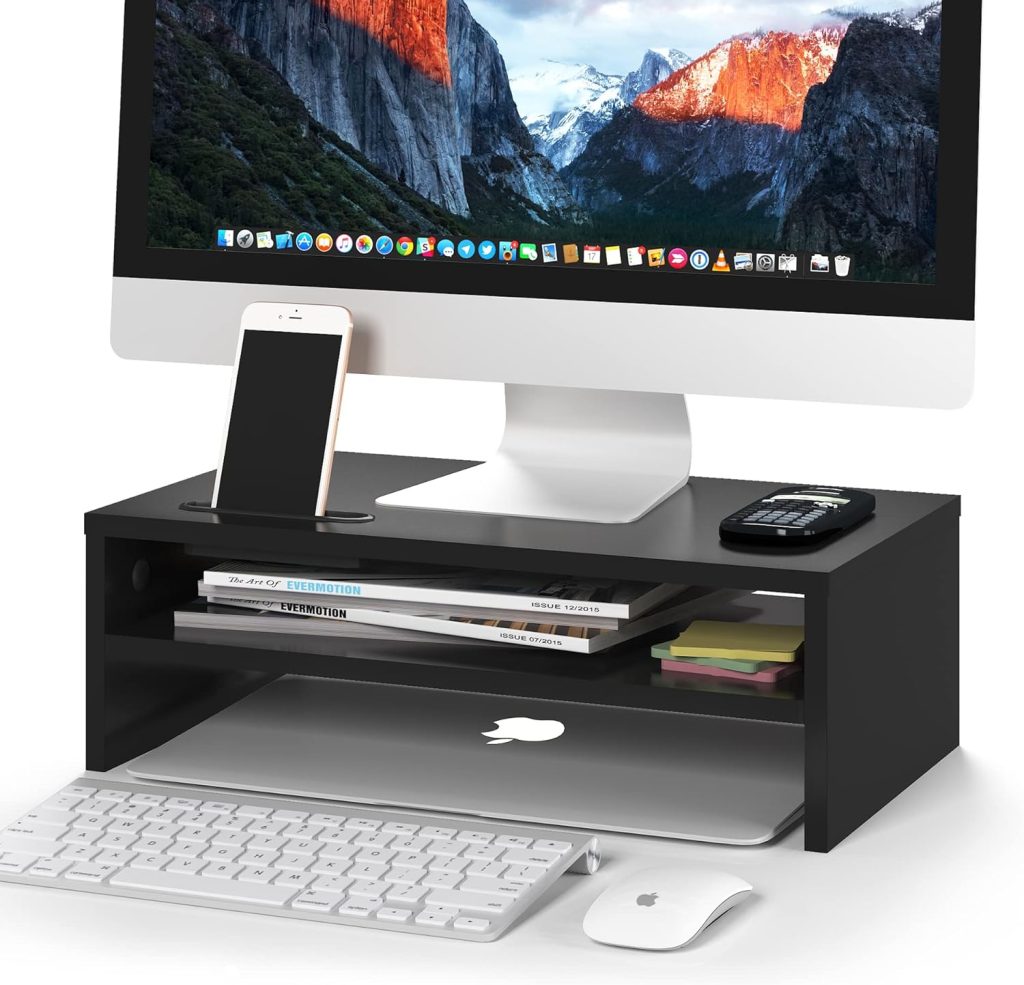
BONTEC Wood Monitor Stand – 2-Tier, Black
Original price was: £23.99.£18.98Current price is: £18.98.


4. Coordinate Supplier Deliveries
If you do not clear out office furniture on time, you might face delays in receiving new technology. Most suppliers have set delivery times. If your location isn’t ready to accept the new items, you could end up paying additional fees for rescheduling or storage.
To avoid this, schedule your waste collection to align with your delivery dates from the start.
5. Set Up Your Network Infrastructure First
Install structured cabling, patch panels, and wireless access points before placing desks and equipment. Arranging technology around furniture can create problems. Set up the network first, then arrange the furniture around it.
6. Test Connectivity Before the Team Moves In
After finishing the cabling and hardware setup, test every data point and Wi-Fi zone before your team arrives. Finding dead zones or bad connections now will save you a lot of time later. It’s much easier to do a full connectivity test on an empty floor than to troubleshoot with 40 occupied desks around.
7. Follow a 30-60-90 Day Timeline
A clear timeline helps everyone involved in the project stay on the same page. Sticking to this plan reduces confusion and helps the project progress smoothly from one phase to the next.
Here’s a simple summary of the 30-60-90 days timeline presented in the table below:
| Phase | Timeline (Before Move-In) | Focus Area |
| Phase 1 | Days 0 to 30 | Site clearance, structural works, and power installation |
| Phase 2 | Days 31 to 60 | Cabling, hardware delivery, and network setup |
| Phase 3 | Days 61 to 90 | Fitment, testing, and team onboarding |
Conclusion
Successful office transitions depend on careful planning and organisation. The most critical step is to prepare the physical space before any technology arrives. This helps prevent delays in the project.
By clearing the site early, coordinating closely with contractors, and providing IT teams with a clean area to work in, the installation process remains accurate and efficient. This proactive approach ensures that the workspace is ready for technology as soon as the team arrives.To find the right technology for your new office, contact us, and we will help you build a workspace that works for you.


